What's New in Blackboard: August 2026 Updates

We have summarized updates that directly impact instructors for this article. For a full list of updates please visit the release notes page for this update.
Improve Accessibility with Blackboard Ally Auto-Tagging
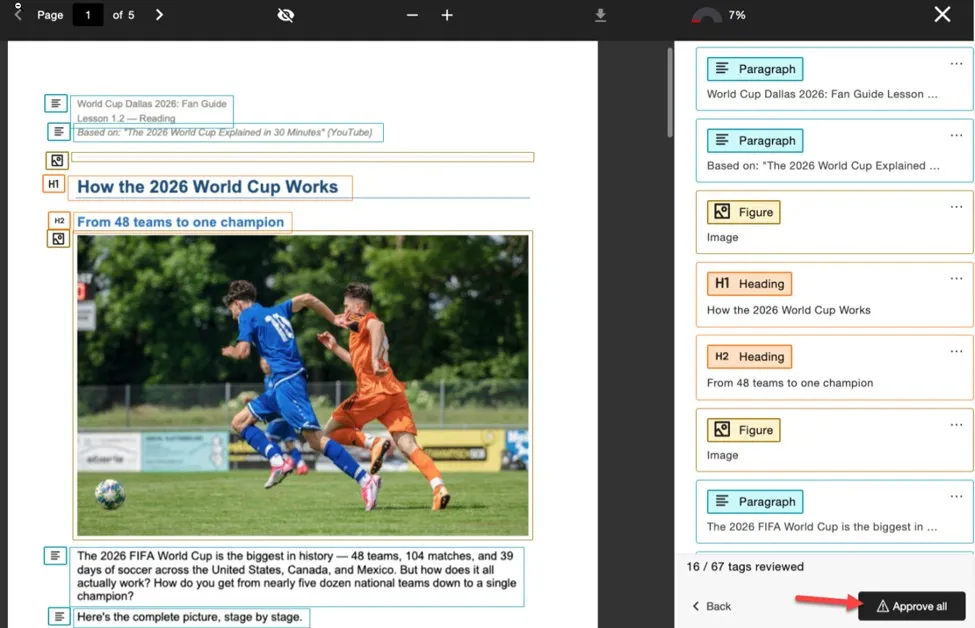
One of the most significant additions this month is automatic PDF tagging through Blackboard Ally. Instructors can now generate accessibility tags for previously untagged PDF documents directly from the Ally Instructor Feedback panel. After generating tags, instructors can review and approve all or selected tags before applying them to the document. This feature helps improve document accessibility while keeping instructors in control of the final tagging structure.
New Content Editor Available in Early Access
Blackboard has introduced a new content editor for Ultra Documents through an Early Access program. The redesigned editor features a simplified authoring experience, enhanced formatting tools for lists and tables, and improved accessibility support through better keyboard navigation and modern shortcuts. During the beta period, instructors can choose between the new editor and the current editor while providing feedback that will help shape future development.

Easier Group Management
Faculty who use group activities will appreciate two new enhancements to group management.
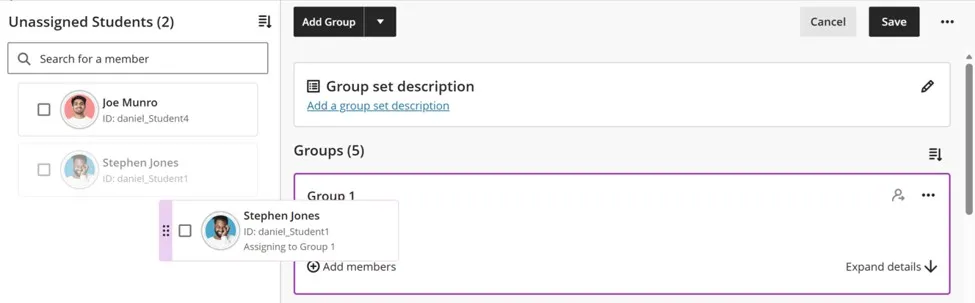
First, group membership can now be managed using drag-and-drop controls. Students can be moved from the unassigned list into groups, and individual students can be removed without clearing an entire group.
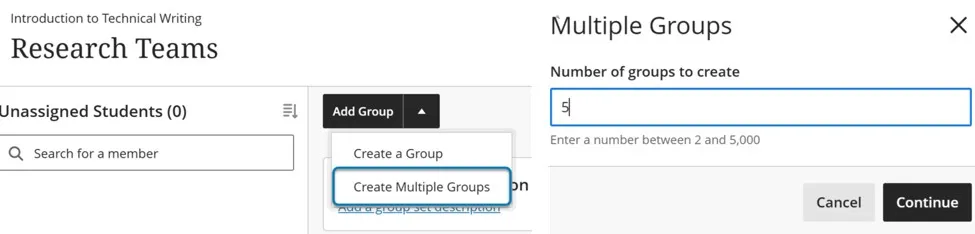
Second, instructors can create multiple groups at once. Instead of creating groups individually, faculty can now generate anywhere from two to 5,000 groups in a single action, significantly reducing setup time for large courses.
Improved Discussion Navigation
A long-requested enhancement has arrived for discussions. Both instructors and students can now sort discussion posts by newest first or oldest first. Blackboard also remembers the selected sort order for each discussion, making it easier to return to lengthy conversations and quickly find the most relevant posts. The feature works consistently across desktop and mobile devices.Gradebook Grid View Redesign
The Gradebook Grid View has undergone a substantial redesign aimed at streamlining grading workflows. A new Grade Details panel brings grading information and common actions into a single location, while grade posting, exceptions, and exemptions have been reorganized to improve efficiency. Blackboard notes that grades, calculations, grade schemas, and the List View remain unchanged.
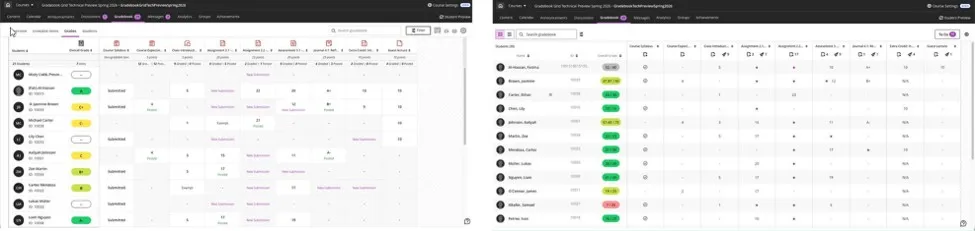
Additional improvements include:
- Student names can be displayed as either First Name Last Name or Last Name, First Name.
- Student IDs may be displayed in a sortable column.
- Accommodation indicators are more visible.
- Instructors can sort by student name, ID, overall grade, or assessment column.
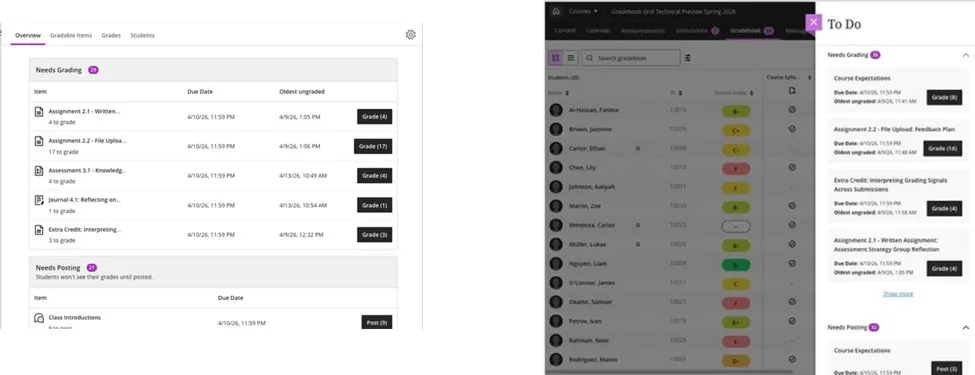
- A new To Do panel within the Gradebook surfaces items that need grading or posting.
Export Question Banks
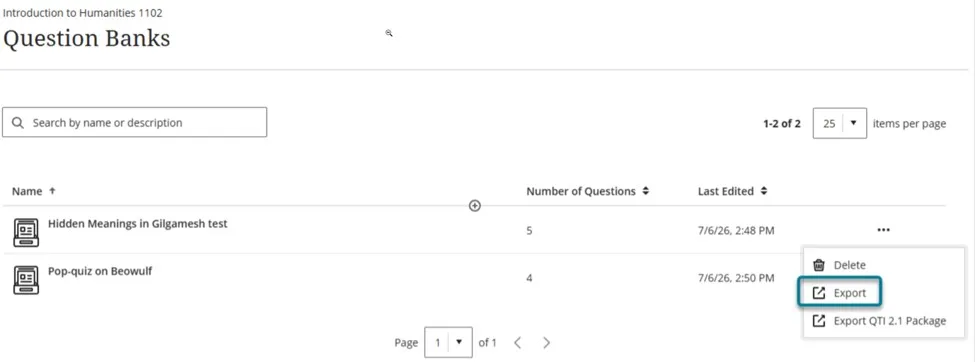
Instructors can now export question banks directly to their local devices. This feature makes it easier to back up assessment content, share question banks with colleagues, and reuse questions in other courses or future semesters.
Navigation Enhancements Across Courses
Blackboard continues its effort to create a more consistent and intuitive navigation experience. Several improvements are designed to help users maintain context and reduce confusion while moving through course materials.Full-Page Content Navigation
Learning modules, folders, documents, assessments, links, and media now open as full pages rather than sliding panels. This creates a more predictable navigation experience and makes it easier for users to return to their previous location within a course.
Breadcrumb Navigation
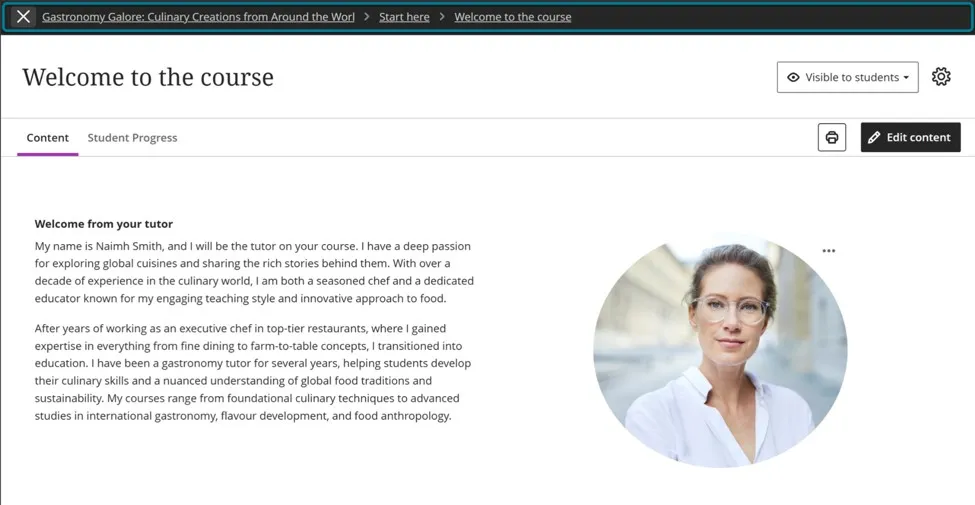
New breadcrumbs show a user's location within course modules and folders, providing additional context and making it easier to navigate complex course structures. No setup is required by instructors.

Focus State for Assessments
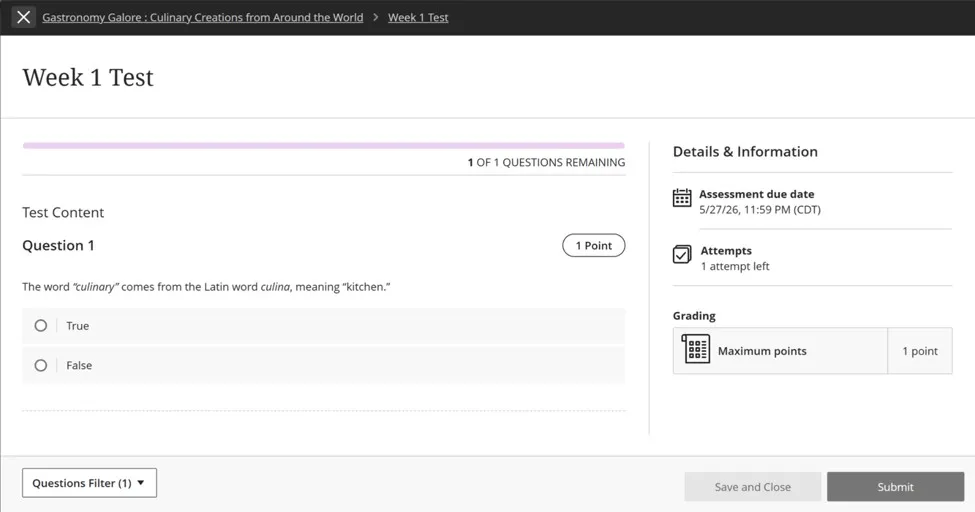
Students will now enter a distraction-reduced "focus state" when beginning tests and assignments. The streamlined interface minimizes navigation elements while still allowing students to leave the assessment if needed. No instructor action is required.
New "Your Top To Dos" for Students
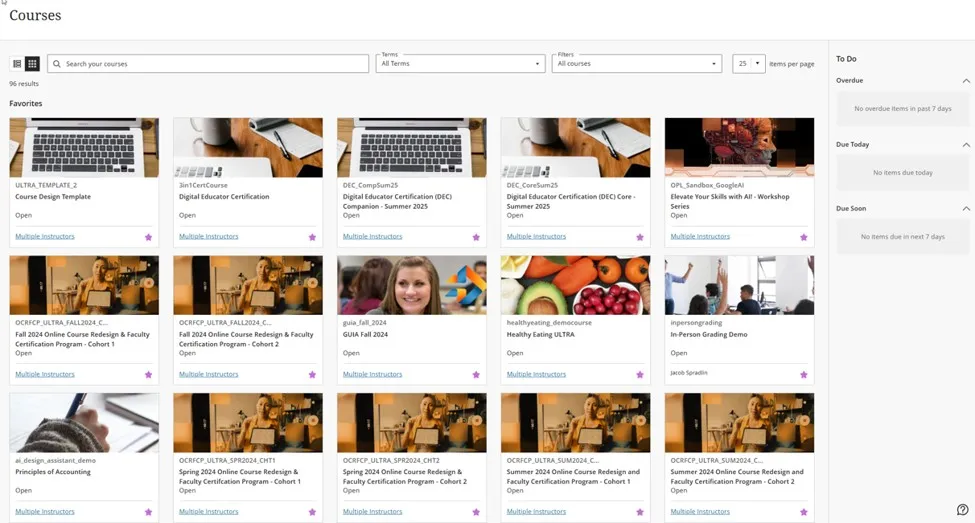
A new "Your Top To Dos" component has been added to the Courses page to help students prioritize upcoming work. The list highlights up to five urgent tasks, displays due dates and statuses, and links students directly to the location where they can complete assignments or review feedback. Completed and unavailable items are automatically filtered out.