Directory Block
Highlight what makes us SHSU
The Directory Block component displays contact and personnel information for a department or unit by connecting to faculty and staff profile pages. The directory block component can pull contact information from a manually maintained list or automatically from all profile pages associated with a department.
Using the directory block component ensures consistency and accuracy across SHSU webpages while reducing the need for editors to manually maintain individual profiles across the website.
Manual Selection (Preferred Method)
Manually selecting profiles to include in a directory allows editors to:
- Display staff and faculty in separate directories
- Display personnel in a custom order, such as by position
- Create smaller, refined directories for:
- Faculty research fields or subject areas
- Committees
- Unofficial teams
Limitations:
- Manual selection does not support pagination. All profiles will display on a single page.
How to Manually Select Profiles
- Select Manual Profile Selection in the directory component settings.
- Complete the required component fields.
- Link profile pages to the directory component:
- Click the Page Chooser.
- Navigate to Directory site > employee-profiles.
- Select the profile page you want to include.
- Repeat to add additional profiles as needed.
- Arrange the display order:
- Profiles will appear in the directory in the same order they are listed in the component.
- Adjust the order by moving profile pages up or down in the list
Automatic Directory Block
Using an automatic directory block:
- Creates a directory from all profile pages associated with a department
- Paginates the directory (the number of contacts per page is set in the block settings)
Limitations:
- Does not allow custom ordering
- Updates overnight. Changes to profile contact information or directory settings will not appear until the following day.
How to Find Your Directory Block
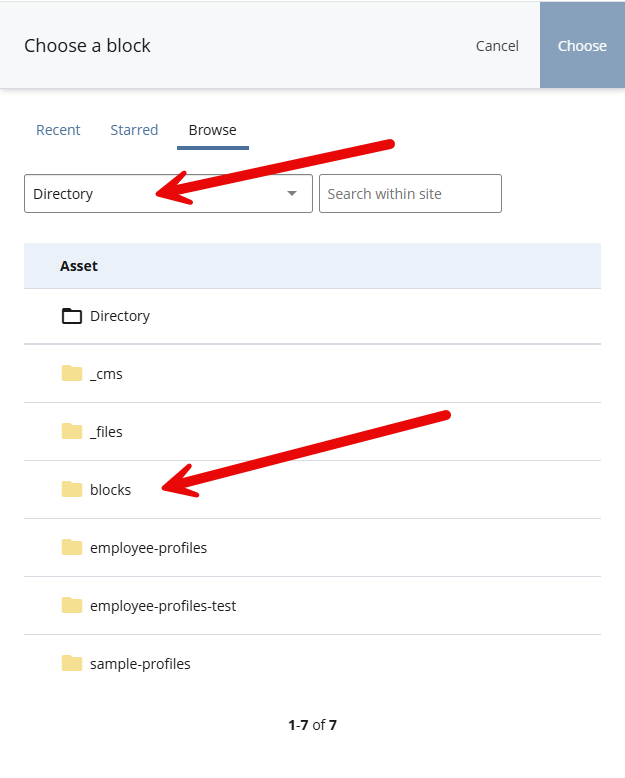
- In the Directory Block component, choose Block for your profile selection.
- Click the Block Chooser field.
- Navigate to the Directory site.
- Open the Blocks folder.
- Locate and select your department’s directory block.
Once selected, the directory content will automatically display on your page.
If you cannot locate your department’s directory block, or if your team needs a special directory group (for example, a filtered list of faculty or committee members), contact IMC using the Cascade Problem Report Form.
Usage Guidelines
- Accuracy: Directory content is managed centrally to ensure information stays current and consistent across all pages.
- Placement: Directory block components are typically placed on a page dedicated to providing personnel contact information.
Key Takeaway
The Directory Block component provides a reliable, no-code way to display accurate contact and personnel listings. By linking to profile pages, editors maintain consistency, save time, and ensure that departmental information stays up to date across the SHSU website.
Example
Cabinet
Updated 6/15/26